Market Flipper Tutorial & Live Arbitrage Guide
Complete step-by-step tutorial for the Albion Online Market Flipper: real-time spreads, safe Caerleon routes, upgrade arbitrage, personal logs, and packet client setup.
1. What is Market Flipping & How the Live Flipper Works
Market flipping in Albion Online is the discipline of purchasing undervalued commodities in one marketplace and selling them at a premium in another.
In Albion Online, markets are entirely player-driven and localized. Items listed in Martlock do not appear in Fort Sterling or Caerleon unless a player physically transports them. This creates price discrepancies between Royal cities, Caerleon Market, and the Black Market.
The Black Market in Caerleon is a unique system buyer that purchases armor, weapons, and accessories directly from players to restock monster drop tables throughout the game world. When players defeat mobs and open chests in dungeons and open-world zones, the system pulls equipment from Black Market purchases.
Because Black Market buy orders fill as players sell to them, data freshness is critical. The AlbionMeta Market Flipper ingests market orders every 60 seconds, calculating net profit after sales tax and order setup fees, with cargo weight, trips, and route danger badges displayed alongside each trade.

- Instant Flips deliver silver immediately upon arrival with zero listing fees.
- Sell Orders offer different profit margins but require waiting for buyers and paying a 2.5% market setup fee in addition to sales tax.
Source: game data, Dragonfire Patch 3, updated 2026-10-12
2. The 6 Strategy Modes Explained
The flipper organizes arbitrage opportunities into six specialized trading modes tailored to your capital, risk tolerance, and time availability.
Each tab queries our real-time feed with dedicated mathematical models to surface profitable trades:
Instant Flips Tab
Matches cheapest sell orders at your origin city directly against active buy orders at your destination. You purchase from existing sell orders and sell immediately into buy orders upon arrival with zero wait time and no market setup fee.
Sell Orders Tab
Identifies price differences between origin sell orders and destination sell orders. Requires listing your goods as sell orders at destination markets, waiting for other players to buy them, and paying a 2.5% market setup fee in addition to sales tax.
Black Market Tab
Filters exclusively for instant sales to Caerleon's Black Market buy orders. This loop sells directly to the game's system buyer rather than waiting for player purchases.
Upgrade → Black Market Tab
Calculates enchantment arbitrage by purchasing lower-enchantment items (such as flat .0), combining them with runes, souls, or relics, and fulfilling higher-enchantment (.1, .2, .3) Black Market buy orders.
Flip Log & Sessions Tab
Your personal trading journal for structured runs. Tracks claimed flips, total silver invested, realized profit, net ROI, and aggregates needed enchantment materials into a unified shopping list.
Activity & Leaderboard Tab
Displays 24-hour server hourly flip activity and a 7-day community top flippers leaderboard.
Source: game data, Dragonfire Patch 3, updated 2026-10-12
3. Filter Controls & Recommended Starting Presets
Fine-tune the table to match your bankroll, mount capacity, and preferred risk profile.
New traders often make the mistake of setting filters too broadly or risking transports across red zones without adequate preparation. We recommend two proven presets to get started:
Beginner Safe Loop Preset: Set Buy Locations to Caerleon and Sell Locations to Black Market. Because both markets reside within the city of Caerleon, you never leave the safe zone. There is zero risk of hostile player combat, making this an ideal safe loop for beginners.
Royal Transport Arbitrage Preset: Set Buy Locations to Royal Cities (Bridgewatch, Fort Sterling, Lymhurst, Martlock, Thetford) and Sell Locations to Black Market. Set Minimum Profit (Silver) to 50,000 Silver and adjust order age tolerances. This surfaces higher margins per run but requires red-zone transit.

- Always verify your Premium Status toggle. Characters with Premium pay 4% sales tax, while non-Premium characters pay 8%.
- Use the "Smuggler Buy Location" ("Smuggler's Fee") selector if you account for regional transport fees.
Source: game data, Dragonfire Patch 3, updated 2026-10-12
4. Reading a Flip Row & Analyzing Key Metrics
Every row on the flipper provides comprehensive data to verify whether a trade is viable before you invest silver.
The flipper defaults to sorting by Total Profit (Fillable Units × Net Unit Profit), ensuring you prioritize high-volume, high-yield opportunities rather than single-unit listings.

Item & Copy Name
Displays the localized item title, tier badge (T4-T8), and quality level (Q1-Q5). Click the icon next to the title to copy the exact in-game item search string to your clipboard.
Route & Risk Badge
Shows origin and destination cities alongside a color-coded danger tag. Green indicates a Safe route within Caerleon; Red flags red-zone crossings between Royal cities and Caerleon.
Volume & Liquidity Warning
Displays the number of fillable units currently available on the order book. If fillable units exceed 50% of the 28-day daily destination sales volume, an amber warning badge (50%+ Vol) is shown to flag potential liquidity constraints.
Weight & Cargo Trips
Renders profit per kilogram for the cargo. When a mount max load is entered in the filters, it also renders profit per trip (+silver/trip) and the number of trips required (e.g. 1 trip, 2 trips); without a mount capacity, the trip lines render as a dash (—).
Total Profit Highlight
Net silver profit after marketplace fees and taxes. Highlighted in accent blue as the primary decision metric.
Dual Freshness Timestamps
Shows how recently the buy and sell prices were scanned. Green indicates fresh scans up to 10 minutes (<= 600s); yellow marks moderate scans between 11 and 25 minutes (601s - 1500s); red warns of stale scans older than 25 minutes (> 1500s).
Source: game data, Dragonfire Patch 3, updated 2026-10-12
5. Step-by-Step Worked Flip Walkthrough
Follow this illustrative walkthrough to understand how the flipper computes fees and net profit on an instant sell flip.
The following worked example illustrates the math for an instant sell flip with Premium tax (4% transaction tax; instant sells incur no 2.5% market setup fee):
Spot the Trade on AlbionMeta
Set Buy Locations to Caerleon and Sell Locations to Black Market. Suppose the table shows an illustrative flip for Adept's Battleaxe (T4.0): 4 units available at Caerleon Market for 42,000 Silver each, with a Black Market buy order at 68,000 Silver each.
Claim the Flip ("I Took This")
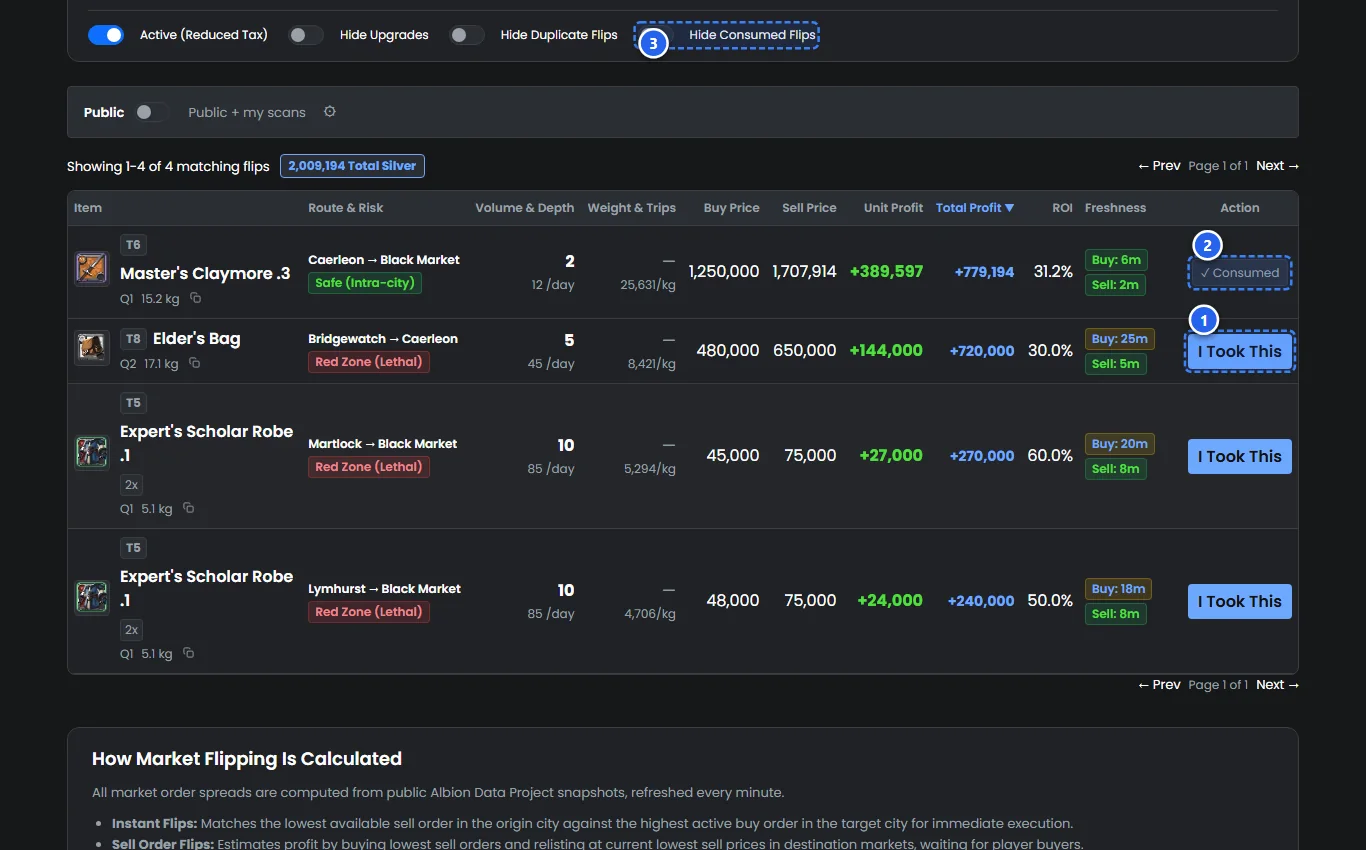
Click the blue "I Took This" button in the Action column. This records the trade into your session log and marks the row with a checkmark.
Purchase at Caerleon Market
Click the copy icon to copy the item name. Open the Caerleon Market, search for the item, and purchase the 4 units for 168,000 Silver total (4 × 42,000 Silver; instant buy pays no setup fee).
Walk to the Black Market NPC
Walk or ride to the Black Market merchant in Caerleon. Because this transit is within the city perimeter, you remain entirely in the safe zone.
Fill the Buy Order & Realize Gains
At the Black Market merchant, sell the 4 units into the waiting buy orders at 68,000 Silver each. With Premium, a 4% sales tax applies (68,000 × 0.96 = 65,280 Silver net revenue per unit; no 2.5% setup fee). Total revenue is 261,120 Silver (4 × 65,280 Silver). Subtracting the 168,000 Silver purchase cost leaves exactly 93,120 Silver net profit (4 × 23,280 Silver).
- Click "I Took This" before purchasing in game to track the items in your session log.
Source: game data, Dragonfire Patch 3, updated 2026-10-12
6. The "I Took This" System & The 10-Minute Rule
AlbionMeta's cooperative consume mechanism tracks taken orders and helps coordinate trading runs.
When multiple traders look at the same market board, coordination is essential to avoid traveling for already-filled orders.
When you click "I Took This", the order is marked as taken. For guest users, claimed orders are saved in your browser (persisting across page reloads). For signed-in users, claimed orders are recorded on the server for 10 minutes, sharing the consumed status with all other traders on that server. Claimed rows display a "✓ Consumed" badge, and enabling "Hide Consumed Flips" hides them from view.
The 10-Minute Expiry & Re-Seen Rule: Claimed orders remain hidden or marked for 10 minutes. However, under the re-seen rule, if a new market upload detects the order again on the market after the claim time, the suppression ends early and the flip becomes visible again.
Flip Already Consumed Dialog: If another trader on the server already marked the order taken within the active 10-minute window, clicking "I Took This" opens a confirmation dialog titled "Flip Already Consumed" asking: "Another trader already marked this order taken in the last 10 minutes. Do you want to record it anyway?". You can cancel or confirm.
Source: game data, Dragonfire Patch 3, updated 2026-10-12
7. Upgrade Flipping (Runes, Souls & Relics Arbitrage)
Transform lower-enchantment gear into higher-margin enchanted equipment.
Black Market buy orders for enchanted equipment (.1, .2, .3) often trade at substantial premiums over flat (.0) gear. Players can enchant weapons and armor using Runes, Souls, and Relics.
The Upgrade → Black Market tab evaluates enchantment arbitrage up to .3. For each enchantment step, the flipper calculates material cost as the required material count multiplied by the lowest sell price in the buy city (or the minimum sell price across all markets if unavailable locally).
Material Pricing Mode: The Material Pricing Mode filter allows you to re-evaluate costs using "Lowest Sell" (minimum sell order price), "Highest Buy (+2.5% fee)" (highest buy order plus 2.5% setup fee), or "7-day Avg (+2.5% fee)" (7-day average price plus 2.5% fee), automatically deducting any enchantment materials you have in stock.
Material Shopping List: As you claim upgrade flips, the flipper aggregates all required enchantment artifacts into a unified shopping list in your session card, displaying the exact counts of Runes, Souls, and Relics needed.
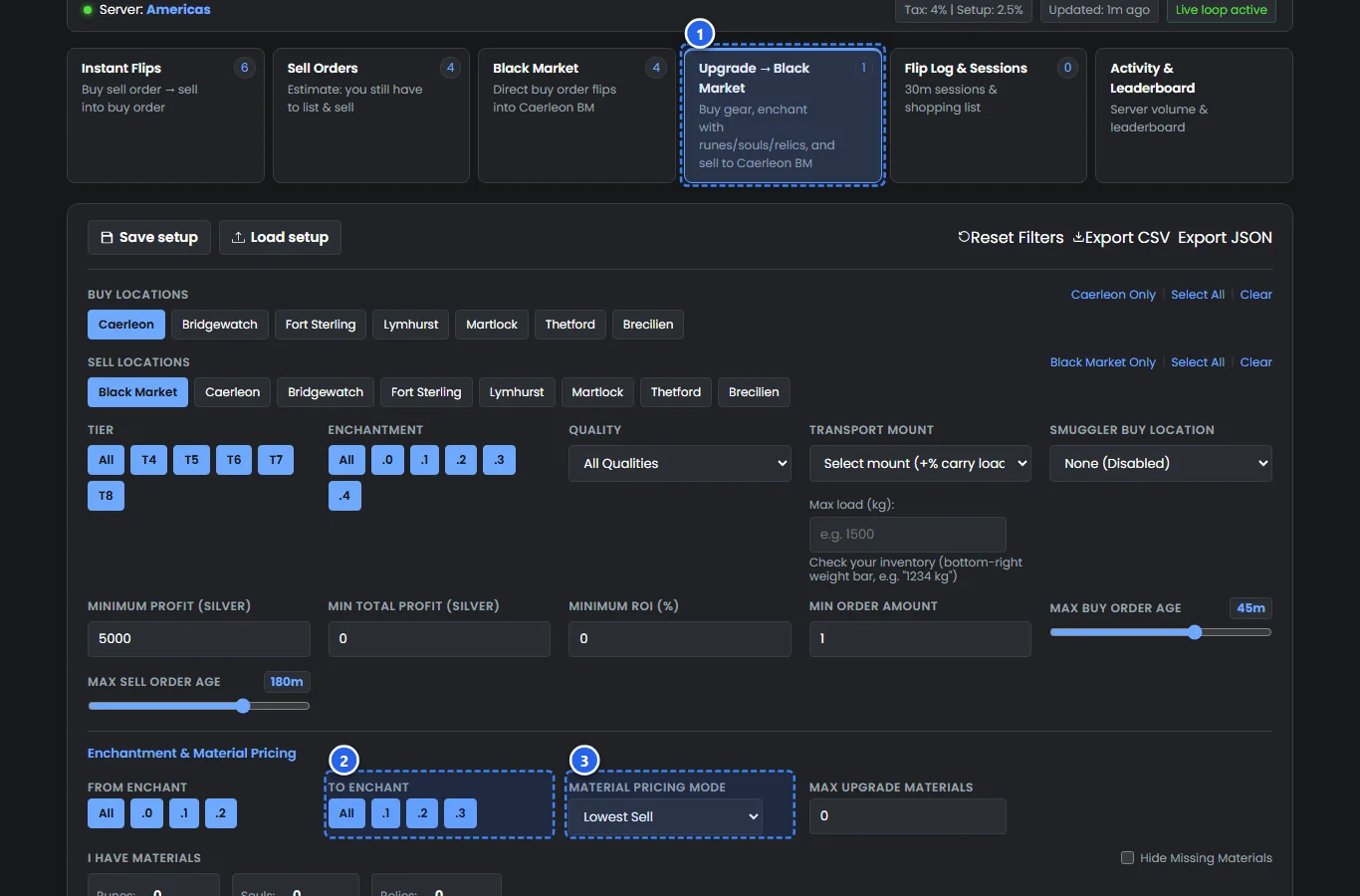
- Enchanting combines the base equipment with the required artifact materials.
- The Material Pricing Mode filter allows you to price artifacts using "Lowest Sell", "Highest Buy (+2.5% fee)", or "7-day Avg (+2.5% fee)".
Source: game data, Dragonfire Patch 3, updated 2026-10-12
8. Personal Flip Log & 30-Minute Trading Runs
Track performance metrics, measure net ROI, and audit realized earnings across structured trading sessions.
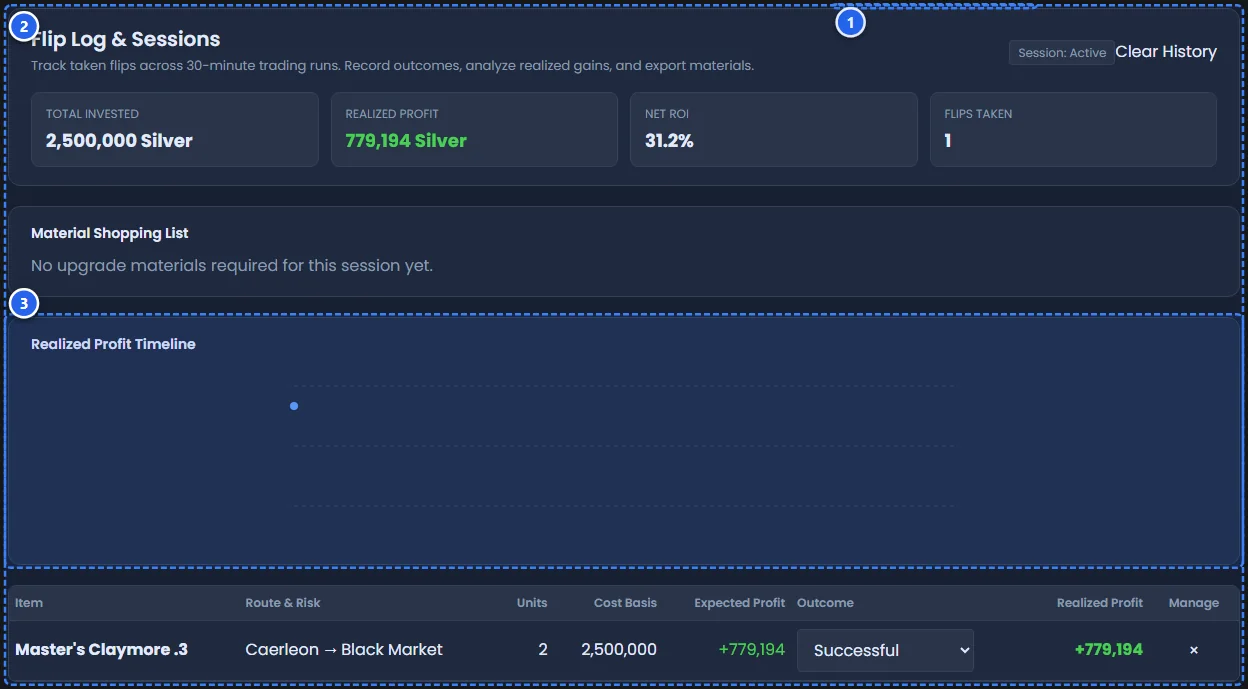
Structuring your trading into 30-to-60-minute runs helps audit capital efficiency. The Flip Log & Sessions tab organizes claimed flips into an active session ledger:
Total Invested: Total silver capital committed to purchased equipment and upgrade materials.
Realized Profit: Actual silver profit generated upon completing sales.
Net ROI: Percentage return on invested capital across the session.
Outcome Management: You can update each logged flip's status using the outcome selector: "Successful" (full expected profit), "Failed (Salvage)" (liquidating via salvage or secondary markets), or "Lost (Ganked)" (total loss in red zones).
Source: game data, Dragonfire Patch 3, updated 2026-10-12
9. Dealing with Failed Flips & Salvage Strategies
What to do when a Black Market buy order fills before you arrive.
If another player fills a buy order before you arrive in Caerleon, you have several options to recover your investment:
Strategy 1: Re-list on Caerleon Market. Caerleon is an active PvP city where players frequently purchase weapons and armor. Listing the item as a sell order on Caerleon Market allows you to sell to other players.
Strategy 2: Consult 28-Day Price History. Clicking the "28-Day BM History" button opens historical trading volume and price charts for the Black Market. (Clicking the item title link opens the dedicated item details page). If the item has consistent daily volume, holding or relisting it is often viable.
Strategy 3: Live Salvage Prices. Selecting "Failed (Salvage)" in the session log opens the "Live Salvage Prices" dialog, comparing current buy orders and lowest sell orders across Royal cities and Caerleon.
- Avoid selling immediately into deep-discount buy orders; check the price history and sell order listings first.
Source: game data, Dragonfire Patch 3, updated 2026-10-12
10. Red Zone Transport Safety & Risk Management
Key safety considerations when transporting goods between Royal cities and Caerleon.
Transporting goods from Royal cities to Caerleon requires traversing red zones. Surviving red zones relies on situational awareness and prudent risk management:
Red Zones Are Full Loot
Red zones are full-loot PvP areas. If hostile players dismount and defeat your character, all carried inventory and equipped gear is dropped upon death.
Carry Only What You Can Afford to Lose
Never load your entire bankroll into a single transport run. Split large quantities into multiple trips so that a loss does not wipe out your trading capital.
Check the Route Danger Badge
The flipper displays a color-coded route badge for every trade: Green for Safe routes within Caerleon, and Red for routes requiring transit through red zones.
Use the Transport Calculator
Plan your weight, mount capacity, and profit per kilogram before departing using the dedicated Transport Calculator at /transport-calculator/.
Source: game data, Dragonfire Patch 3, updated 2026-10-12
11. Using albiondata-client & Private Scans
Contribute to public market data and view your own uploaded scans with the open-source client.
Public market data is collected by players running the open-source Albion Online Data Project client (albiondata-client). The client reads game network packets passively from your local network adapter without modifying game memory or files.
Private Scans (-p Flag): From your AlbionMeta Account page (/account/), generate a private scan token. When you run the client with the -p argument, your market scans are submitted to your private feed.
Feed Rebuild Cycle: The private feed is rebuilt by the ingest cycle approximately every 60 seconds. On the flipper, toggle "Public + my scans" to see your uploaded prices badged with "Your Scan".

Install Npcap & albiondata-client
Download and install Npcap on Windows, making sure the option "Install Npcap in WinPcap API-compatible Mode" is checked. Download the latest albiondata-client release from GitHub.
Get Your Token from /account/
Sign in to AlbionMeta, navigate to /account/, and generate your private scan token for Europe, Americas, or Asia.
Launch Client with -p Argument
Launch the client from terminal or shortcut with: -p https://scan.albionmeta.net/<token>/<server>. Verify packet capture in the console.
- Manage your scan settings, regenerate tokens, or review upload stats on the /account/ page.
- Read the full setup guide at /data-client/ for operating system details.
Source: game data, Dragonfire Patch 3, updated 2026-10-12
12. Account Settings & Scan Health Verification
Manage tokens, review connected servers, and inspect client upload telemetry.
The Account settings page (/account/) gives you total control over your private scan pipeline. You can regenerate tokens, revoke compromised links, and inspect client upload telemetry from the status card, which refreshes every 30 seconds from the CDN status file:

Source: game data, Dragonfire Patch 3, updated 2026-10-12
13. Localized Interface & Multilingual Support
AlbionMeta is fully localized across 16 languages with native bidirectional layout support.
Whether you trade in English, German, Japanese, Arabic, or Vietnamese, every control, metric, server indicator, and time format is natively localized. For right-to-left (RTL) languages like Arabic, our layout automatically mirrors elements, isolates numbers, and wraps relative time indicators to preserve readability without layout clipping.

Source: game data, Dragonfire Patch 3, updated 2026-10-12
14. Common Mistakes & Frequently Asked Questions
Avoid the standard pitfalls that trap novice market traders.
Review these critical principles before launching high-value transport runs:
Trading Stale Price Orders
Avoid trading buy orders older than your comfort tolerance. Verify the freshness indicator is green before embarking.
Falling for Troll Outlier Listings
Check daily destination volume. An item listing with an abnormal price on near-zero volume will show misleading margins; review 28-day turnover before purchasing.
Overweight Transport Traps
Configure the "Transport Mount" (+% carry load) dropdown and enter your "Max load (kg):" in the Cargo filters to calculate cargo trips and trip profit accurately before purchasing large orders.
Ignoring Sales Taxes Without Premium
Non-Premium accounts pay 8% sales tax instead of 4%. A trade with a small margin may be profitable with Premium but lose silver without it. Toggle Premium Status accordingly.
- Is albiondata-client safe to use? The client captures network traffic passively via Npcap without modifying game memory or game files.
- How often does the flipper refresh? The feed updates approximately every 60 seconds with live elapsed age ticking on every row.
Source: game data, Dragonfire Patch 3, updated 2026-10-12